redsn0w


 Loading...
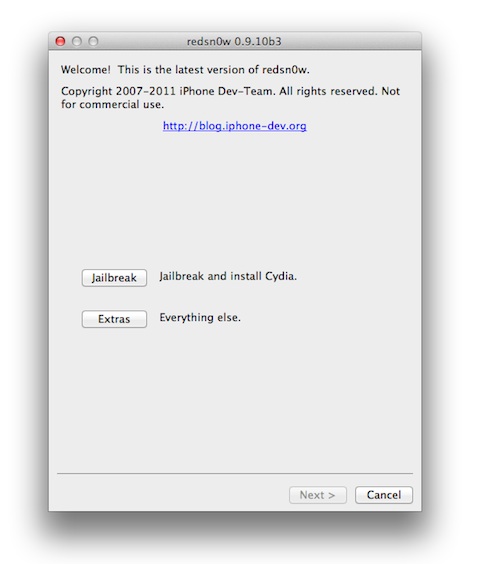
The iPhone Dev team releases a software utility called redsn0w for Mac and PC which you can use to jailbreak your iPhone, iPod touch, and iPad. Once you download, and run redsn0w it will optionally install Cydia on your device along with the jailbreak so you can install 3rd party apps. If you want to unlock your iPhone and use a non-supported carrier using redsn0w you will have to use the Extras feature and build a custom ipsw file. There are also others apps including ultrasn0w for unlocking your device. As of now the latest supported jailbreak using redsn0w is iOS 5.0.1 for all devices running the A4 chip. Jailbreaks for the iPhone 4S and iPad 2 with the A5 chip using redsn0w are coming soon.
Redsn0w Download Links
| Redsn0w 0.9.13 dev 4 | Mac | Windows |
| RedSn0w 0.9.10 b6 | Mac | Windows |
| RedSn0w 0.9.10 b3 | Mac | Windows |
| RedSn0w 0.9.10 b2 | Mac | Windows |
| RedSn0w 0.9.9 b5 | Mac | Windows |
| RedSn0w 0.9.9 b4 | Mac | Windows |
| RedSn0w 0.9.9 b1 | Mac | Windows |
| RedSn0w 0.9.8 b3 | Mac | Windows |
| RedSn0w 0.9.8 b1 | Mac | Windows |
| RedSn0w 0.9.6 rc 15 | Mac | Windows |
| RedSn0w 0.9.6 rc 14 | Mac | Windows |
| RedSn0w 0.9.6 rc 9 | Mac | Windows |
| RedSn0w 0.9.6 rc 7 | Mac | Windows |
| RedSn0w 0.9.7 beta 5 | Mac | Windows |
| RedSn0w 0.9.7 beta 4 | Mac | Windows |
| RedSn0w 0.9.7 beta 3 | Mac | Windows |
| RedSn0w 0.9.7 beta 2 | Mac | Windows |
| RedSn0w 0.9.7 beta 1 | Mac | Windows |
| RedSn0w 0.9.6 beta 6 | Mac | Windows |
| RedSn0w 0.9.6 beta 5 | Mac | Windows |
| RedSn0w 0.9.6 beta 4 | Mac | Windows |
| RedSn0w 0.9.6 beta 3 | Mac | Windows |
| RedSn0w 0.9.6 beta 2 | Mac | Windows |
| RedSn0w 0.9.6 beta 1 | Mac | Windows |
| RedSn0w 0.7.1 | Mac torrent | Windows torrent |
How to jailbreak iOS 5.1 with redsn0w (semi-tethered)
This jailbreak works on all iOS devices with an A4 chip running the iOS 5.1 firmware. Not supported yet are: iPhone 4S, iPad 2 and iPad 3. Also note that this jailbreak is semi-tethered.
- Download Redsn0w 0.9.10b6 Windows or Mac
- Run redsn0w while your device is connected to your computer
- Click Jailbreak, turn off your device and put it into DFU mode using the instructions provided in Redsn0w.
- Choose the “Install Cydia” and other optional items and continue
- Wait while Redsn0w does its jailbreak which takes less than 10 minutes.
- Now we need to redo a couple of steps to tether your device and get rid of the white Cydia icon. Re-open Redsn0w and go to the Extras section.
- Choose “Just boot” and put your device into DFU mode once again and wait for a reboot. After this step your Cydia icon will be working.
- To get a “semi-tethered” device do the following in Cydia
- Go to the Manage tab > Sources > Edit > Add > type in this URL: http://www.thebigboss.org/semitether > Hit Add
- Now go back to the source you just added, find the “semitether” application and hit Install.
Here’s a video demo showing you the above steps for installing Cydia on iOS 5.1 devices with an A4 chip.
How to jailbreak iOS 5.0.1 with redsn0w (untethered)
Fresh iOS 5.0.1 Use these steps if you have just upgraded to iOS 5.0.1 and have not tried to jailbreak before. If you need to unlock, read all the steps before you proceed.
- Connect your device and open iTunes. Upgrade to the new 5.0.1 firmware. Keep your device connected to your computer.
- Download redsn0w 0.9.10b3 for your Mac or PC below.
- Run redsn0w while your device is connected to your computer.
- Click the Jailbreak button and choose Install Cydia
- Follow the steps on the screen to put your device into DFU mode.
- Wait while the jailbreak completes.
- Steps for Unlock user only
- Don’t update to the latest iOS 5 version from iTunes.
- Download iOS 5 for your iDevice
- In redsn0w go to Extras > Custom IPSW
- Select the file you downloaded above and let redsn0w build a custom firmware for you.
- Now go to Extras > Pwned DFU
- Restore your device using the custom firmware in iTunes.
- Now you can unlock your iPhone using Gevey SIM, or the updated Ultrasn0w.
Previously Tethered iOS 5.0.1 Jailbreak If you have jailbroken to a tethered iOS 5.0.1 before (as described in the steps below) then follow these simple steps.
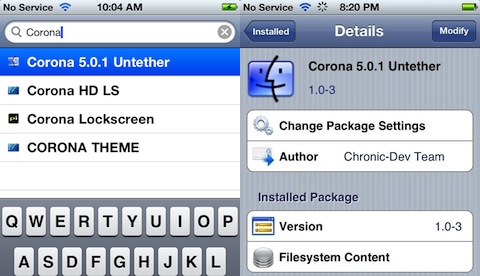
- Open Cydia
- Search for and install a new package called Corona 5.0.1 Untether
- You will now convert your tethered jailbreak to an untethered jailbreak
Supported Devices with A4 chip
- iPhone 4 (GSM)
- iPhone 3GS
- iPod touch 3G
- iPod touch 4G
- iPad 1
- iPad 2 (not yet, coming soon)
- AppleTV 2G (PwnageTool only for now)
Unsupported Devices with A5 chip
- iPad 2
- iPhone 4S
How to jailbreak iOS 5 with redsn0w (tethered)
Note: This is a tethered jailbreak. This means you will need to connect your device to a computer and use redsn0w as shown below in the last step, each time you want to reboot your device.
Tip If you’ve already upgraded to iOS 5 and have the latest iTunes software, you can jump to step 3.
Unlock notice: If you want to unlock your iPhone don’t upgrade to the latest iOS 5 via iTunes. Read the last step first for details.
- Download and install iTunes 10.5 on your Mac or PC
- Connect your device and open iTunes. Upgrade to the new 5.0 firmware. Keep your device connected to your computer.
- Download redsn0w 0.9.9b5 for your Mac or PC below
- Run redsn0w while your device is connected to your computer.
- Click the Jailbreak button labelled: Jailbreak and Install Cydia. Good news! Starting with this release, redsnow just downloads the .ipsw file automatically from Apple for you. No more messing around with ipsw files.
- Turn off your device and keep it connected to your computer, then click the Next button.
- Follow the steps on the screen to put your device into DFU mode. Here’s how
- Hold the power button for 2 seconds
- Hold the home button without releasing the power button.
- Release the power button but keep holding the home button until installation starts
- Wait while the jailbreak completes. You’ll see a series of commands and screens on your device. After a few minutes this process will be complete, your device will restart and you will see the Cydia app icon on your HomeScreen.
- Go into DFU mode, from the redsn0w Extras section pick Just Boot and redsn0w will boot your device as tethered.
- Steps for Unlock user only
- Don’t update to the latest iOS 5 version from iTunes.
- Download iOS 5 for your iDevice
- In redsn0w go to Extras > Custom IPSW
- Select the file you downloaded above and let redsn0w build a custom firmware for you.
- Now go to Extras > Pwned DFU
- Restore your device using the custom firmware in iTunes.
- Now you can unlock your iPhone using Gevey SIM, or the updated Ultrasn0w.
Supported Devices
- iPhone 4 (GSM)
- iPhone 3GS
- iPod touch 3G
- iPod touch 4G
- iPad 1
- iPad 2 (not yet, coming soon)
- AppleTV 2G (PwnageTool only for now)
Unsupported Devices
- iPad 2
- iPhone 4S
How to jailbreak iOS 4.3.3 with redsn0w (untethered)
- Download and install iTunes 10.2.2 on your Mac or PC
- Connect your device and open iTunes. Upgrade to the new 4.3.3 firmware. Keep your device connected to your computer.
- Download iOS 4.3.3 for your iDevice. You’ll need this ipsw file in step 6.
- Download redsn0w 0.9.6rc15 for your Mac or PC below
- Run redsn0w while your device is connected to your computer.
- Click Browse and select the .ipsw file you downloaded from step 3. Wait while redsn0w processes & successfully identifies the IPSW file, then click the Next button.
- Check the box for “Install Cydia” and click Next.
- Turn off your device and keep it connected to your computer, then click the Next button.
- Follow the steps on the screen to put your device into DFU mode. Here’s how
- Hold the power button for 2 seconds
- Hold the home button without releasing the power button.
- Release the power button but keep holding the home button until installation starts
- Wait while the jailbreak completes. You’ll see a series of commands and screens on your device. After a few minutes this process will be complete, your device will restart and you will see the Cydia app icon on your HomeScreen.
Supported Devices
- iPhone 4 (GSM)
- iPhone 3GS
- iPod touch 3G
- iPod touch 4G
- iPad 1
- iPad 2 (not yet, coming soon)
- AppleTV 2G (PwnageTool only for now)
Unsupported Devices
- iPad 2
- iPhone 4S
Other files you need to install redsn0w
– Download iOS firmware file for your device
– iTunes
– Bootloader files V3.9 (BL-39.bin) and V4.6 (BL-46.bin)
Here is a video demo of using redsn0w on the iPhone with Windows
Use iPhone mods and hacks at your own risk! Installing 3rd Party iPhone apps requires you to jailbreak the iPhone before installing the native software and apps. Browse the full list of all iPhone and iPod touch native 3rd party apps filed under the software category.
More info on redsn0w here
Deprecated: strlen(): Passing null to parameter #1 ($string) of type string is deprecated in /var/www/html/wp-content/themes/apps/single.php on line 80

54 Comments to “redsn0w”
Leave Comment
About AppSafari
Popular App Review Categories
- Games
- Featured apps
- iPad apps
- Free apps
- Cydia apps
- App Lists
- Music
- Utilities
- Reference
- Social
- Chat
- Video
- Productivity
- Notes
- Fun
- GPS
- Files
- Augmented reality
- Shopping
- Education
- Finance
- Travel
- Food
- Sports
- News
- Weather
- Health
- Movies
- Photos
- VOIP
- Calendar
- Contacts
- Auto
- Dating
- Books
- Web apps
- All categories >>
Recent iPhone App Reviews
- Elevate – Brain Training May 28th, 14
- UpTo Calendar – Syncs with Google Calendar, iCloud, Outlook and more May 28th, 14
- Quip May 23rd, 14
- Marco Polo: Find Your Phone by Shouting MARCO! May 22nd, 14
- Ku – creative social network May 13th, 14
- Personal Zen May 9th, 14
- Fiasco! Free May 9th, 14
- Forza Football (formerly Live Score Addicts) Apr 29th, 14

I HAVE A 3G IPHONE. IT ALREADY BEEN JAILBROKEN AND UNLOCKED BUT THAN I USED ITUNES 8.2 TO UP DATE IT TO 3.0 OS AND IT SHOWN MY SIM CARD IS NOT VALID. NOW I CAN ONLY MAKE EMERGRNCY CALL. WHAT CAN I DO TO SAVE MY IPHONE.
Posted on June 22nd, 2009 at 3:21 am byNotice: Only variables should be assigned by reference in /var/www/html/wp-content/plugins/subscribe-to-comments/subscribe-to-comments.php on line 591
ANDO
Hi i was wondering what OS are u using, looks like vista but the wallpaper is very nice. If your using vista what kind of add on did u use to achieve that desktop ?
Thanks
Posted on June 22nd, 2009 at 2:50 pm byNotice: Only variables should be assigned by reference in /var/www/html/wp-content/plugins/subscribe-to-comments/subscribe-to-comments.php on line 591
David
@Ando redsn0w will not unlock iPhone 3G, as it says above. you have to revert back to 2.2.1 or something for now and unlock using QuickPwn for now until ultrasn0w comes out
Posted on June 22nd, 2009 at 10:28 pm byNotice: Only variables should be assigned by reference in /var/www/html/wp-content/plugins/subscribe-to-comments/subscribe-to-comments.php on line 591
Danny
can i ask you something.? i foloow the instructions but i face one problem.. when i go to the file itunes show me 2 folders tha none of them call iphone software updates.. the one called iphone carrier suport and the other itunes plugs in.. and non of them show me the file i should browse.. if you can help me thnx
Posted on June 30th, 2009 at 2:21 am byNotice: Only variables should be assigned by reference in /var/www/html/wp-content/plugins/subscribe-to-comments/subscribe-to-comments.php on line 591
sergios
ok i found the solution.. i just revert my firmware from 3.0 to 2.2.1.. and the folders showed up.. sorry
Posted on June 30th, 2009 at 2:42 am byNotice: Only variables should be assigned by reference in /var/www/html/wp-content/plugins/subscribe-to-comments/subscribe-to-comments.php on line 591
sergios
I have an ipod touch 8gb and i cant find the software for it! My version is 2.2.1
Posted on July 10th, 2009 at 8:59 am byNotice: Only variables should be assigned by reference in /var/www/html/wp-content/plugins/subscribe-to-comments/subscribe-to-comments.php on line 591
Nigga
i have an iphone 3g that is unlocked. i used cedia to load a game which i later uninsalled. now i can only recieve calls, since all the menu items are lost. what can i do.
Posted on July 11th, 2009 at 1:07 am byNotice: Only variables should be assigned by reference in /var/www/html/wp-content/plugins/subscribe-to-comments/subscribe-to-comments.php on line 591
moha
is there any problems if i jailbreak my iphone 3G? i scared to jailbreak but i want to 🙁
Posted on July 12th, 2009 at 10:14 am byNotice: Only variables should be assigned by reference in /var/www/html/wp-content/plugins/subscribe-to-comments/subscribe-to-comments.php on line 591
adlantagor
It seems that the office firewall blocks the connection of RedSn0w to its server, is there a work around for this?
Thanks!
Posted on July 12th, 2009 at 9:14 pm byNotice: Only variables should be assigned by reference in /var/www/html/wp-content/plugins/subscribe-to-comments/subscribe-to-comments.php on line 591
Binx
hey dude, why after download finished (iphone 2g), it cant be opened by redsn0w? i think because of the application format is not ipsw. right? and my question is, how can be opened? please help me mates.
Posted on July 17th, 2009 at 11:37 am byNotice: Only variables should be assigned by reference in /var/www/html/wp-content/plugins/subscribe-to-comments/subscribe-to-comments.php on line 591
adlantagor
This is an awful friggin stupid response thread only questions with little to none answer… geez
Posted on July 31st, 2009 at 9:39 am byNotice: Only variables should be assigned by reference in /var/www/html/wp-content/plugins/subscribe-to-comments/subscribe-to-comments.php on line 591
Stupidpost
Hey adlantagor, if you notice the file you download has an extention ipsw.zip All you need to do is delete the zip extention and leave it as .ipsw and that’s it.
Posted on August 14th, 2009 at 3:55 pm byNotice: Only variables should be assigned by reference in /var/www/html/wp-content/plugins/subscribe-to-comments/subscribe-to-comments.php on line 591
Haku
I have the Ipod Touch 2G (2.2.1).
Posted on September 8th, 2009 at 10:32 am byUsing redsn0W 7.2 and it only stay at the hard drive picture for a long time then when it reboots, it asks me to connect to Itunes to restore the firmware.
Tried 4 times with no luck.
How can I upgrade to 3.0 and jailbreak the same time?
Notice: Only variables should be assigned by reference in /var/www/html/wp-content/plugins/subscribe-to-comments/subscribe-to-comments.php on line 591
spotty
spotty Just update your red snow
Posted on September 17th, 2009 at 8:50 pm byNotice: Only variables should be assigned by reference in /var/www/html/wp-content/plugins/subscribe-to-comments/subscribe-to-comments.php on line 591
Dev
y wen i follow all the steps..den later after its written downloading jailbreak data..n after it restart i cnt find cydia in my iphone 3G 16GB?
Posted on October 14th, 2009 at 11:03 pm byNotice: Only variables should be assigned by reference in /var/www/html/wp-content/plugins/subscribe-to-comments/subscribe-to-comments.php on line 591
cc
im so lost with all of this all i want to do is get a good background theme.. i dunno where to start or what to do..! ahhhh lol
Posted on November 13th, 2009 at 12:45 pm byNotice: Only variables should be assigned by reference in /var/www/html/wp-content/plugins/subscribe-to-comments/subscribe-to-comments.php on line 591
panfaa
how to download it cuz if i click this
Posted on December 22nd, 2009 at 8:41 pm byiPod Touch 1G Firmware 3.0
its like nothing..error>?..
Notice: Only variables should be assigned by reference in /var/www/html/wp-content/plugins/subscribe-to-comments/subscribe-to-comments.php on line 591
shamie
has anyone had problems with bluetooth on the redsn0w iPhone 2G 3.1.3 upgrade. Mine doesn’t seem to want to pair anymore.
Other problems:
my tmobile prepaid sim is the only one that “works” now. however, when i go to Sbux, my Vonage Mobile no longer works. I have to reset the network settings to get it to work at home.
my att gophone sim won’t work at all anymore.
at least I can make VOIP calls and prepaid calls, so I’m not complaining. but i had all of these features with blackra1n. do you think redsn0w will release a patch or update? anyone know of fixes on cydia that i can try?
Posted on April 5th, 2010 at 9:29 am byNotice: Only variables should be assigned by reference in /var/www/html/wp-content/plugins/subscribe-to-comments/subscribe-to-comments.php on line 591
quicknight
does app safari have a cydia source?
Posted on April 5th, 2010 at 9:58 am byNotice: Only variables should be assigned by reference in /var/www/html/wp-content/plugins/subscribe-to-comments/subscribe-to-comments.php on line 591
quicknight
hye, I got an iPod touch 8GB. problem is when I try downloading redsow it says safari can’t download file. am I supposed to download on comp?
Posted on April 10th, 2010 at 2:14 pm byNotice: Only variables should be assigned by reference in /var/www/html/wp-content/plugins/subscribe-to-comments/subscribe-to-comments.php on line 591
toxinus
same safari download problem with a software called “appsnap” or “installer.app”. people say u gotta download straight on the iPod and from a site called “jailbreakme.com”
and another problem is that, that site has absolutely nothing related to appsnapp or installer.app. ( no links. nothing…)
Posted on April 10th, 2010 at 2:30 pm byI try looking for every jailbreak software from every site possible but no luck. pls help
Notice: Only variables should be assigned by reference in /var/www/html/wp-content/plugins/subscribe-to-comments/subscribe-to-comments.php on line 591
toxinus
how do you mod/flag someone on here with an offensive name?
Posted on April 10th, 2010 at 4:13 pm byNotice: Only variables should be assigned by reference in /var/www/html/wp-content/plugins/subscribe-to-comments/subscribe-to-comments.php on line 591
quicknight
toxinus, jailbreakme.com on the iPhone takes me to a site called “the conceited store.” can i get installer.app here?
Posted on April 10th, 2010 at 4:15 pm byNotice: Only variables should be assigned by reference in /var/www/html/wp-content/plugins/subscribe-to-comments/subscribe-to-comments.php on line 591
quicknight
i want to use redsn0w
Posted on April 10th, 2010 at 6:50 pm byNotice: Only variables should be assigned by reference in /var/www/html/wp-content/plugins/subscribe-to-comments/subscribe-to-comments.php on line 591
josone dennis
quicknight, by going to jailbreakme.com i’m also directed to “the conceited store” but there’s absolutely nothing there.
Posted on April 11th, 2010 at 1:13 am byif u type jailbreakme.com in YouTube, you’ll see vids of people visiting that same site on their iPods but it looks totaly different.
Notice: Only variables should be assigned by reference in /var/www/html/wp-content/plugins/subscribe-to-comments/subscribe-to-comments.php on line 591
toxinus
I am wanting to jailbreak my iPhone n hve downloaded the ios4 software is it still possible to do this
Posted on July 15th, 2010 at 11:34 am byNotice: Only variables should be assigned by reference in /var/www/html/wp-content/plugins/subscribe-to-comments/subscribe-to-comments.php on line 591
Barry cockrell
hi i am using iphone3gs with ios4.3.1 i have tryed 2 jailbreak with redsnow as i seen instruction on ur web site… when i start 2 do its asking for newer bootrom or older.i selected yes as new bootrom after that when installing cydia its struct and redsnow also not working ??PLS TELL ME HOW 2 INSTALL CYDIA IN IOS4.3.1 IPHONE 3GS
Posted on April 13th, 2011 at 8:12 pm byNotice: Only variables should be assigned by reference in /var/www/html/wp-content/plugins/subscribe-to-comments/subscribe-to-comments.php on line 591
GowriShankar
there is no 4.3.2 on the list
Posted on April 30th, 2011 at 6:50 pm byNotice: Only variables should be assigned by reference in /var/www/html/wp-content/plugins/subscribe-to-comments/subscribe-to-comments.php on line 591
alex
very good really
Posted on May 21st, 2011 at 7:26 pm byNotice: Only variables should be assigned by reference in /var/www/html/wp-content/plugins/subscribe-to-comments/subscribe-to-comments.php on line 591
sa
I need install cydia for myiphone
Posted on May 24th, 2011 at 4:32 am byNotice: Only variables should be assigned by reference in /var/www/html/wp-content/plugins/subscribe-to-comments/subscribe-to-comments.php on line 591
Vanhoang
i ended up using jailbreakme for my white iphone 4 and ipad 1. very happy with it and it is easily removeable. the only regret is that i won’t be able to upgrade to iOS 5 when it comes out and still use jailbreak me…at least not yet?
Posted on July 18th, 2011 at 7:10 am byNotice: Only variables should be assigned by reference in /var/www/html/wp-content/plugins/subscribe-to-comments/subscribe-to-comments.php on line 591
quicknight
CAN you help me to download cydia on iPod touch, I tryed many pays but I failed
Posted on July 24th, 2011 at 8:18 am byThanks
Notice: Only variables should be assigned by reference in /var/www/html/wp-content/plugins/subscribe-to-comments/subscribe-to-comments.php on line 591
Sameh
Please stop posting Jailbreakme.com reviews here. And I prefer redsn0w over any other jailbreak method. Jailbreakme.com has given me many issues but I restored and jailbroke with redsn0w, and none of those issues persisted.
Posted on August 28th, 2011 at 12:38 pm byNotice: Only variables should be assigned by reference in /var/www/html/wp-content/plugins/subscribe-to-comments/subscribe-to-comments.php on line 591
Mike
How to install ?
Posted on August 28th, 2011 at 9:55 pm byNotice: Only variables should be assigned by reference in /var/www/html/wp-content/plugins/subscribe-to-comments/subscribe-to-comments.php on line 591
Viriya
Hi! Can anyone tell me,if I can use Spirit jailbreak ,after having upgraded to OS 3.1.3 on Itunes.Note that I am using an Iphone 2G.Thanks in advance..
Posted on October 31st, 2011 at 6:48 am byNotice: Only variables should be assigned by reference in /var/www/html/wp-content/plugins/subscribe-to-comments/subscribe-to-comments.php on line 591
Eric How
i have iphone 4g so i update to ios 5 and make to it jailbreak so when i download installous make bug and didnt want open just start apple so stopped i need solve plz
Posted on November 7th, 2011 at 6:57 pm byNotice: Only variables should be assigned by reference in /var/www/html/wp-content/plugins/subscribe-to-comments/subscribe-to-comments.php on line 591
tamer
I tried to jailbrake my ipod touch and then it didn’t work and i plugged out my ipod and NOW IT WONT START!!
Posted on November 17th, 2011 at 9:42 am byNotice: Only variables should be assigned by reference in /var/www/html/wp-content/plugins/subscribe-to-comments/subscribe-to-comments.php on line 591
Fia
Program Cydia
Posted on December 4th, 2011 at 7:17 pm byNotice: Only variables should be assigned by reference in /var/www/html/wp-content/plugins/subscribe-to-comments/subscribe-to-comments.php on line 591
Kornelis Angwarmas
I really want to jailbreak my ipad
Posted on January 18th, 2012 at 4:13 pm byNotice: Only variables should be assigned by reference in /var/www/html/wp-content/plugins/subscribe-to-comments/subscribe-to-comments.php on line 591
Laynie
Good
Posted on January 23rd, 2012 at 2:29 am byNotice: Only variables should be assigned by reference in /var/www/html/wp-content/plugins/subscribe-to-comments/subscribe-to-comments.php on line 591
Nashwan Ali
really i want to need yhis website
Posted on March 12th, 2012 at 4:58 pm byNotice: Only variables should be assigned by reference in /var/www/html/wp-content/plugins/subscribe-to-comments/subscribe-to-comments.php on line 591
carees
To whom it may concern
i have an ipad2 with ios5.1 and i tried to jailbreak it by usig the software Redsn0w 0.9.10b6 Windows. but unfortunately it dose not working on my pad, what i can do?
ChunSing
Posted on April 24th, 2012 at 12:39 pm byNotice: Only variables should be assigned by reference in /var/www/html/wp-content/plugins/subscribe-to-comments/subscribe-to-comments.php on line 591
ChunSing
Jack my iPod
Posted on June 12th, 2012 at 6:58 pm byNotice: Only variables should be assigned by reference in /var/www/html/wp-content/plugins/subscribe-to-comments/subscribe-to-comments.php on line 591
Manuel
Just the best
Posted on August 14th, 2012 at 8:42 pm byNotice: Only variables should be assigned by reference in /var/www/html/wp-content/plugins/subscribe-to-comments/subscribe-to-comments.php on line 591
Luis
Best.
Posted on August 14th, 2012 at 8:51 pm byNotice: Only variables should be assigned by reference in /var/www/html/wp-content/plugins/subscribe-to-comments/subscribe-to-comments.php on line 591
Luis
what is the advantage of jailbreaking my iphone 4?
Posted on November 4th, 2012 at 6:37 am byNotice: Only variables should be assigned by reference in /var/www/html/wp-content/plugins/subscribe-to-comments/subscribe-to-comments.php on line 591
Sandy
J
Posted on November 11th, 2012 at 3:48 pm byNotice: Only variables should be assigned by reference in /var/www/html/wp-content/plugins/subscribe-to-comments/subscribe-to-comments.php on line 591
Rene
Jailbreack
Posted on April 13th, 2013 at 4:22 pm byNotice: Only variables should be assigned by reference in /var/www/html/wp-content/plugins/subscribe-to-comments/subscribe-to-comments.php on line 591
Chris
cydia iPhone 4S
Posted on April 20th, 2013 at 2:12 am byNotice: Only variables should be assigned by reference in /var/www/html/wp-content/plugins/subscribe-to-comments/subscribe-to-comments.php on line 591
rammy
Hope it works
Posted on November 26th, 2014 at 11:43 am byNotice: Only variables should be assigned by reference in /var/www/html/wp-content/plugins/subscribe-to-comments/subscribe-to-comments.php on line 591
Kohenbuchanan
This text helped me. Enjoy!
Posted on November 17th, 2015 at 4:14 pm byNotice: Only variables should be assigned by reference in /var/www/html/wp-content/plugins/subscribe-to-comments/subscribe-to-comments.php on line 591
importandocomsucessobr.com
Thanks for this post.
Posted on November 21st, 2015 at 6:23 am byNotice: Only variables should be assigned by reference in /var/www/html/wp-content/plugins/subscribe-to-comments/subscribe-to-comments.php on line 591
Roberto
uhm, ok..jack ipod..lets go
Posted on March 16th, 2016 at 6:32 pm byNotice: Only variables should be assigned by reference in /var/www/html/wp-content/plugins/subscribe-to-comments/subscribe-to-comments.php on line 591
aqui
Post excelente
Posted on January 22nd, 2017 at 3:56 pm byNotice: Only variables should be assigned by reference in /var/www/html/wp-content/plugins/subscribe-to-comments/subscribe-to-comments.php on line 591
jocelia