IMAP for Gmail


 Loading...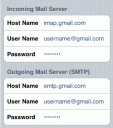
Want to see Gmail changes you make on your iPhone instantly reflected in Gmail? Now you can with IMAP for Gmail support rolling out over the next few days. You can sync your inbox across devices instantly and automatically. Whether you read or write your email on your phone or on your desktop, changes you make to Gmail will be seen from anywhere you access your inbox. Delete an email from your iPhone and it will be deleted from your Gmail. Gmail will also show what you’ve read on the iPhone, so no more “Mark as read” and reading the same email twice nonsense.
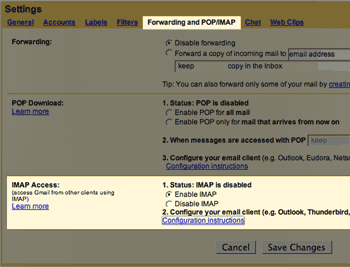 To see if your Gmail account has IMAP turned on yet login to your Gmail account and goto Settings. If you see a tab called “Forwarding and POP/IMAP” you have it. If your tab says “Forwarding and POP” it means your account has not been IMAP enabled by Google yet. But not to worry, Google is rolling it out to everyone over the next few days. Here is what the Settings page looks like with IMAP support.
To configure your iPhone to use Gmail with IMAP support follow these 7 steps. A video demonstration is also provided below.
- Enable IMAP in your Gmail account settings.
- Tap Settings.
- Tap Mail.
- Tap Add Account.
- Tap Other. (Note: don’t tap Gmail; if you do, you’ll set up POP rather than IMAP. We are aware of this issue and are currently working to make setting up Gmail more intuitive for the iPhone.)
- Make sure that:
- The IMAP tab is highlighted
- Host Name is imap.gmail.com
- User Name is your full Gmail address, including ‘@gmail.com’
- For Outgoing Mail Server (SMTP), Host Name is smtp.gmail.com
- For Outgoing Mail Server (SMTP), Host Name is smtp.gmail.com
- Tap Save, and you’re done.
You can also verify your Advanced settings by tapping Settings > [your Gmail IMAP Account] > Advanced.
Incoming Settings
- Use SSL: ON
- Authentication: password
- Server Port: 993
Outgoing Settings
- Use SSL: ON
- Authentication: Password
- Server Port: 587
If you rather watch the steps here is a nice little video tutorial:
Read the details here. More info on the official Google and Gmail blogs.
Deprecated: strlen(): Passing null to parameter #1 ($string) of type string is deprecated in /var/www/html/wp-content/themes/apps/single.php on line 80

47 Comments to “IMAP for Gmail”
Leave Comment
About AppSafari
Popular App Review Categories
- Games
- Featured apps
- iPad apps
- Free apps
- Cydia apps
- App Lists
- Music
- Utilities
- Reference
- Social
- Chat
- Video
- Productivity
- Notes
- Fun
- GPS
- Files
- Augmented reality
- Shopping
- Education
- Finance
- Travel
- Food
- Sports
- News
- Weather
- Health
- Movies
- Photos
- VOIP
- Calendar
- Contacts
- Auto
- Dating
- Books
- Web apps
- All categories >>
Recent iPhone App Reviews
- Elevate – Brain Training May 28th, 14
- UpTo Calendar – Syncs with Google Calendar, iCloud, Outlook and more May 28th, 14
- Quip May 23rd, 14
- Marco Polo: Find Your Phone by Shouting MARCO! May 22nd, 14
- Ku – creative social network May 13th, 14
- Personal Zen May 9th, 14
- Fiasco! Free May 9th, 14
- Forza Football (formerly Live Score Addicts) Apr 29th, 14

hey i have a question, when i try to sent outgoing mail from my itouch it says that it can not connect to smtp.gmail.com
Posted on December 15th, 2007 at 8:37 pm byNotice: Only variables should be assigned by reference in /var/www/html/wp-content/plugins/subscribe-to-comments/subscribe-to-comments.php on line 591
asdf
Configure your IMAP folder settings so that the mail goes to the same folders as the Gmail webmail setup.
Posted on January 10th, 2008 at 10:34 pm byNotice: Only variables should be assigned by reference in /var/www/html/wp-content/plugins/subscribe-to-comments/subscribe-to-comments.php on line 591
macguru
Mail settings for iPod Touch
Under Settings, select “Mail”, “Add Account”, “Other”, then “IMAP” and use the following settings:
Incoming Mail Server
Host Name: imap.gmail.com
User Name: your Gmail account
Password: your Gmail password
Outgoing Mail Server
Host Name: smtp.gmail.com
User Name: your Gmail account
Password: your Gmail password
Advanced
Use SSL: On (incoming/outgoing)
Authentication: Password (incoming/outgoing)
Server port: 993 (incoming) and 587 (outgoing)
Mapping iPod Touch folders to Gmail IMAP folders
Once you’ve set up your Gmail account, go back to Settings>Mail>Gmail (or whatever you’ve named your Gmail account settings) and change the folder mappings as follows:
a. Select “Advanced”
b. Select “Drafts Mailbox” and set it to “On the server > [Gmail] Drafts”
c. Select “Sent Mailbox” and set it to “On the server > [Gmail] Sent Mail”
d. Select “Deleted Mailbox” and set it to “On the server > [Gmail] Trash”
Click on “Advanced” each time to return to the prior menu after choosing a folder
Once this is complete, new sent mail will automatically be saved in your Gmail “Sent” folder, new draft mail will be saved to your Gmail “Drafts” folder, and deleted mail will appear in your Gmail “Trash” folder.
Any emails sent from your iPhone will appear in Gmail’s ‘Sent’ view, any saved drafts saved on your iPhone will appear in Gmail’s ‘Drafts’ view, and any deleted messages will be reflected in Gmail’s ‘Trash’ view. If you want to “Archive” email from your Touch, open the message and move it to the “[Gmail] All Mail” folder.
Posted on January 11th, 2008 at 12:15 am byNotice: Only variables should be assigned by reference in /var/www/html/wp-content/plugins/subscribe-to-comments/subscribe-to-comments.php on line 591
Freek
hey, i can set this account up, but when i go to check my mail, it says no password entered, but ven when i go back to settings and enter it again, it doesnt save it…please help…im frustrated
Posted on March 31st, 2008 at 4:29 pm byNotice: Only variables should be assigned by reference in /var/www/html/wp-content/plugins/subscribe-to-comments/subscribe-to-comments.php on line 591
Enezi
i just got the ipod touch and i tried to do the same…
Posted on April 7th, 2008 at 7:01 am byit keeps saying “connection to imap.gmail.com failed.
and i checked all the settings twice…. nothing
Notice: Only variables should be assigned by reference in /var/www/html/wp-content/plugins/subscribe-to-comments/subscribe-to-comments.php on line 591
ghj124
have u jailbrokeb ur touch..if u have then u need to install the app called “fix mail password” from installer
Posted on April 8th, 2008 at 6:59 am byNotice: Only variables should be assigned by reference in /var/www/html/wp-content/plugins/subscribe-to-comments/subscribe-to-comments.php on line 591
enezi
thankyou
Posted on July 31st, 2008 at 1:29 pm byNotice: Only variables should be assigned by reference in /var/www/html/wp-content/plugins/subscribe-to-comments/subscribe-to-comments.php on line 591
dayna jhughes
Thank you.
Posted on September 20th, 2008 at 6:38 am byNotice: Only variables should be assigned by reference in /var/www/html/wp-content/plugins/subscribe-to-comments/subscribe-to-comments.php on line 591
Hu
HAVING PROBLEMS WITH EMAIL ACCOUNTS USING 3G IPHONE THE SETUP OF THE IPHONE SEEMS TO BE FINE BUT WHEN I HAVE AN EMAIL ACCOUNT WITH A PASSWORD WITH SPACES IN IT IT DOESNT RECOGNIZE THAT PASSWORD NEED HELP. APPRECIATE ANYONE WHO CAN HELP WITH TROUBLING MATTER ALL ACCOUNTS WORK WIHTOUT A PASWORD ONLINE AND ON MY BLACKBERRY BUT NOT ON THE IPGHONE 3G FIRMWARE 2.1 PLEASE I NEED YOUR HELP CONTACT ME AT MY ADDRESS ABOVE PLEASE I HAVE TRIED EVERYTHING AND THE ONLY THING THAT WORKED WITH THAT IPHONE WAS CHNAGING THE PASSWORD. CANT UNDERSTAND WORLS WITH ALL OTHER DEVICES!!!!!!!
Posted on October 11th, 2008 at 4:33 pm byNotice: Only variables should be assigned by reference in /var/www/html/wp-content/plugins/subscribe-to-comments/subscribe-to-comments.php on line 591
JOE
First of all there is no need to SCREAM! I would suggest changing your password to something without a space in it.
Posted on October 11th, 2008 at 7:23 pm byNotice: Only variables should be assigned by reference in /var/www/html/wp-content/plugins/subscribe-to-comments/subscribe-to-comments.php on line 591
Appmin
Thanks it worked.
Posted on November 11th, 2008 at 4:11 pm byNotice: Only variables should be assigned by reference in /var/www/html/wp-content/plugins/subscribe-to-comments/subscribe-to-comments.php on line 591
Brian
Everything worked for me, except for when I send a email, its says smtp.gmail.com did not work.
Posted on November 23rd, 2008 at 4:11 pm byNotice: Only variables should be assigned by reference in /var/www/html/wp-content/plugins/subscribe-to-comments/subscribe-to-comments.php on line 591
Steve
I just bought an Ipod Touch and I can’t log onto my e-mail it says “cannot connect using SSL Do you want to try setting up the account without SSL?” If I say no nothing happens but if I say yes than it says The IMAP server “imap.gmail.com” is not responding. CHeck your network connection and that you entered the correct information in the “Incoming Mail Server” field. Do I have the wrong cords or what do I do? I can’t seem to figure it out. Please Help,
Posted on December 20th, 2008 at 9:21 pm byNotice: Only variables should be assigned by reference in /var/www/html/wp-content/plugins/subscribe-to-comments/subscribe-to-comments.php on line 591
Allen Miller
I finally found a fix for this: macrumors post by misformac that states:
hey i had the same problem on my iphone
trying to set up gmail imap
it would first ask if it was ok to not use SSL
then it would say imap.gmail.com is not responding.
all i had to do to get it working was to clear the CAPTCHA.
http://mail.google.com/support/bin/answer.py?answer=78754&topic=12922
Posted on December 21st, 2008 at 12:35 am byNotice: Only variables should be assigned by reference in /var/www/html/wp-content/plugins/subscribe-to-comments/subscribe-to-comments.php on line 591
Mike
That?s Too nice, when it comes in india hope it can make a Rocking place for youngster.. hope that come true.
Posted on February 8th, 2009 at 7:40 am byNotice: Only variables should be assigned by reference in /var/www/html/wp-content/plugins/subscribe-to-comments/subscribe-to-comments.php on line 591
Pitambharadharaya
Super-Duper site! I am loving it!! Will come back again – taking you feeds also, Thanks.
Posted on February 9th, 2009 at 6:29 am byNotice: Only variables should be assigned by reference in /var/www/html/wp-content/plugins/subscribe-to-comments/subscribe-to-comments.php on line 591
Yagnaroopaya
ok..I am having the same trouble…checked all above,but when i clicked on the link by “mike”, it said the page did not exist! I’m so frustrated b/c my gmail account worked until about 2 weeks ago!!! HELP a tech-challenged person!!!!
Posted on February 9th, 2009 at 3:03 pm byNotice: Only variables should be assigned by reference in /var/www/html/wp-content/plugins/subscribe-to-comments/subscribe-to-comments.php on line 591
angie
thank you so much mike!!
Posted on March 4th, 2009 at 8:22 am byNotice: Only variables should be assigned by reference in /var/www/html/wp-content/plugins/subscribe-to-comments/subscribe-to-comments.php on line 591
Rachel
The link was seperated. Here you go tech challenged.
Posted on March 22nd, 2009 at 7:13 am byNotice: Only variables should be assigned by reference in /var/www/html/wp-content/plugins/subscribe-to-comments/subscribe-to-comments.php on line 591
Jess
I usually do not comment on blog posts but I found this quite interesting, so here goes. Thanks! Regards, P.
Posted on April 16th, 2009 at 4:49 pm byNotice: Only variables should be assigned by reference in /var/www/html/wp-content/plugins/subscribe-to-comments/subscribe-to-comments.php on line 591
Antique Ring
As a someone new to the internet I am always searching online for for psots like this that can help me. Thanks.
Posted on May 11th, 2009 at 3:58 pm byNotice: Only variables should be assigned by reference in /var/www/html/wp-content/plugins/subscribe-to-comments/subscribe-to-comments.php on line 591
Larry
I had the same exact problem. On my iPhone, the imap.gmail.com failure would pop up, I don’t know how this happened because it was working fine. The problem has been solved though by doing this…
Specifically, you have to go to a page on google and type in your username, password, and a captcha phrase and then it suddenly starts allowing IMAP again.
**** You MUST visit this from the same computer/iPhone/iPod touch/whatever that is having the problems. ****
Visit: https://www.google.com/accounts/DisplayUnlockCaptcha
Posted on May 12th, 2009 at 12:33 pm byNotice: Only variables should be assigned by reference in /var/www/html/wp-content/plugins/subscribe-to-comments/subscribe-to-comments.php on line 591
Scott
thanks mike!
Posted on May 12th, 2009 at 9:53 pm bythe unlock captcha solved it!
Notice: Only variables should be assigned by reference in /var/www/html/wp-content/plugins/subscribe-to-comments/subscribe-to-comments.php on line 591
jim
I am having same problem, out of the blue, on my Iphone.
Posted on May 27th, 2009 at 5:14 am byDid not improve with “unlock captcha”
any other thoughts?
Notice: Only variables should be assigned by reference in /var/www/html/wp-content/plugins/subscribe-to-comments/subscribe-to-comments.php on line 591
steve
i got a question i followed all those instructions i got it all set up but when i go to check my mail it “says the connection to the server imap.gmail.com failed” but iv checked everything about 50 times and i followed the instructions and it just doesnt seem to work would you know why?
Posted on June 9th, 2009 at 1:14 pm byNotice: Only variables should be assigned by reference in /var/www/html/wp-content/plugins/subscribe-to-comments/subscribe-to-comments.php on line 591
monster
so, my imap/gmail works fine from day one. however, is there a way to have the gmail application running instead of the default email client. i can’t seem to get to do that. I was able on a blackberry storm.
Posted on June 10th, 2009 at 8:28 pm byNotice: Only variables should be assigned by reference in /var/www/html/wp-content/plugins/subscribe-to-comments/subscribe-to-comments.php on line 591
JinTN
Thank you!!! I clean the captcha as Mike suggested here. And it works!
Posted on June 14th, 2009 at 9:44 pm byNotice: Only variables should be assigned by reference in /var/www/html/wp-content/plugins/subscribe-to-comments/subscribe-to-comments.php on line 591
nadia
i unlocked captcha but now when i try to send an email its saying that my sender (outgoing) address is invalid. my sender addres is “smtp.gmail.com” just like it says it should be. does anyone know what im doing wrong please help.
Posted on June 15th, 2009 at 2:11 pm byNotice: Only variables should be assigned by reference in /var/www/html/wp-content/plugins/subscribe-to-comments/subscribe-to-comments.php on line 591
monster
More post please! you are leaving a poor old man hungry for more :[
Posted on July 7th, 2009 at 8:20 am byNotice: Only variables should be assigned by reference in /var/www/html/wp-content/plugins/subscribe-to-comments/subscribe-to-comments.php on line 591
Nicholas
Yeah this cool I like this post are you going to do a follow up? I just won a Mac Book Air today 🙂 I am so happy about that found a freebee site http://budurl.com/MacBookAir
Posted on August 17th, 2009 at 11:46 am byNotice: Only variables should be assigned by reference in /var/www/html/wp-content/plugins/subscribe-to-comments/subscribe-to-comments.php on line 591
Cheryl Wilson
I loved reading this and I dont really like to read 🙂
Posted on August 30th, 2009 at 12:19 pm byNotice: Only variables should be assigned by reference in /var/www/html/wp-content/plugins/subscribe-to-comments/subscribe-to-comments.php on line 591
Edouard
Wow! Was f?r eine Idee! Was f?r ein Konzept! Beautiful .. Erstaunlich
Posted on September 19th, 2009 at 3:13 pm byNotice: Only variables should be assigned by reference in /var/www/html/wp-content/plugins/subscribe-to-comments/subscribe-to-comments.php on line 591
Ines Fleurant
This was by far the word advice i’ve ever read. A chimpanzee, blind, with poop soiling in his hand could give better advice than the chicken scratch I have just wasted my time bothering to read in hopes of solving an issue.
Posted on October 9th, 2009 at 10:59 am byNotice: Only variables should be assigned by reference in /var/www/html/wp-content/plugins/subscribe-to-comments/subscribe-to-comments.php on line 591
Worst Nightmare
Hi ,Unlock thing Worked really fine.There is a link just click and unlock.My mail works fine right now.Thnx for help
Posted on October 16th, 2009 at 2:16 am byNotice: Only variables should be assigned by reference in /var/www/html/wp-content/plugins/subscribe-to-comments/subscribe-to-comments.php on line 591
Oguzhan Yesilay
Your advice worked wonderfully! I spent hours trying to get my son’s gmail to work on his new itouch. Your advice was by far the best! Thank you for keeping my sanity!
Posted on February 24th, 2010 at 7:05 pm byNotice: Only variables should be assigned by reference in /var/www/html/wp-content/plugins/subscribe-to-comments/subscribe-to-comments.php on line 591
Crazy Mom
Thank you!
Posted on April 16th, 2010 at 7:59 am byNotice: Only variables should be assigned by reference in /var/www/html/wp-content/plugins/subscribe-to-comments/subscribe-to-comments.php on line 591
Season
nice site I like and I sure to visit, well done
Posted on April 17th, 2010 at 12:58 pm byNotice: Only variables should be assigned by reference in /var/www/html/wp-content/plugins/subscribe-to-comments/subscribe-to-comments.php on line 591
Morris
This problem has been bugging me for ages.
Thanks for your help!!!!!
Posted on June 10th, 2010 at 6:16 pm byNow my mail will actually receive, instead of making me think its a connection issue.
Notice: Only variables should be assigned by reference in /var/www/html/wp-content/plugins/subscribe-to-comments/subscribe-to-comments.php on line 591
Thishasbeenpissingmeoff
Finally, I’ve been having problems with SMTP with some email clients on PC. I hope IMAP will solve the problems I had.
Posted on July 1st, 2010 at 7:19 pm byNotice: Only variables should be assigned by reference in /var/www/html/wp-content/plugins/subscribe-to-comments/subscribe-to-comments.php on line 591
iphone_addict
Thanks Scott !! The Captcha thing worked for me !
Posted on October 12th, 2010 at 1:34 am byNotice: Only variables should be assigned by reference in /var/www/html/wp-content/plugins/subscribe-to-comments/subscribe-to-comments.php on line 591
Srikant
Maybe you should edit the page name title IMAP for Gmail – iPhone Apps, iPad apps & iPod touch App Reviews appsafari.com to more catching for your subject you write. I liked the post still.
Posted on October 29th, 2010 at 10:40 pm byNotice: Only variables should be assigned by reference in /var/www/html/wp-content/plugins/subscribe-to-comments/subscribe-to-comments.php on line 591
Pointer Men's Basketball
Thanks heaps for your help saved me alot of pain.
Posted on January 9th, 2011 at 6:42 am bySo easy to follow
Cheers
Notice: Only variables should be assigned by reference in /var/www/html/wp-content/plugins/subscribe-to-comments/subscribe-to-comments.php on line 591
John
Great instructions for the IMAP gmail – iphone issue!!! Gracias:)
Posted on January 17th, 2011 at 1:24 pm byNotice: Only variables should be assigned by reference in /var/www/html/wp-content/plugins/subscribe-to-comments/subscribe-to-comments.php on line 591
Ellen
Thank you for the instructions. They worked great.
Posted on January 20th, 2011 at 2:19 am byNotice: Only variables should be assigned by reference in /var/www/html/wp-content/plugins/subscribe-to-comments/subscribe-to-comments.php on line 591
Chailocks
This is a great writing !
Posted on March 23rd, 2011 at 11:03 am byNotice: Only variables should be assigned by reference in /var/www/html/wp-content/plugins/subscribe-to-comments/subscribe-to-comments.php on line 591
Tom
Send mesech
Posted on July 1st, 2011 at 6:47 pm byNotice: Only variables should be assigned by reference in /var/www/html/wp-content/plugins/subscribe-to-comments/subscribe-to-comments.php on line 591
Juan Martinez
Kak Pobedit Zaikanie?(FREE) http://www.marksharabrin.ru/curse/
Posted on September 20th, 2011 at 3:45 am byNotice: Only variables should be assigned by reference in /var/www/html/wp-content/plugins/subscribe-to-comments/subscribe-to-comments.php on line 591
Morris